Activate the Free License
Capturing variables needs a license. The Free license costs nothing and takes your account, a machine ID and one file.
Before you start: EmbedStudio installed, and an account on this website with a confirmed email address, already signed in. Registering and confirming the address by the link in the verification email come first; this guide starts after that. A license is tied to one computer, so do this on the computer you will use EmbedStudio on.
1.Get the Free license
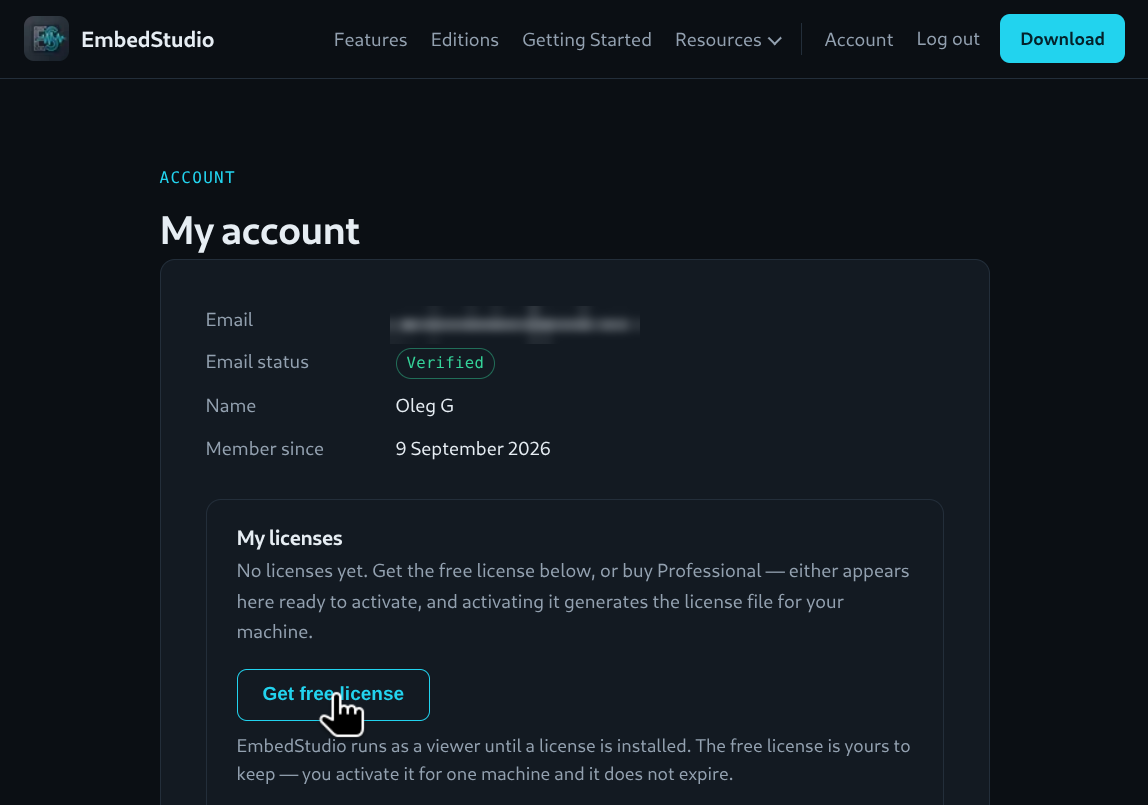
Open your account. Check that Email status reads Verified, then press Get free license. Each account can claim one Free license, and it does not expire. You land on the page of the new license.
This needs a registered account with a confirmed email address: with an unconfirmed address the site refuses the claim and asks you to confirm it first. If you have not yet, register, open the link in the verification email (check your spam folder if it is missing), sign in, and come back here.
2.Copy your machine ID
The license file is signed for one computer, and EmbedStudio tells you which one by its machine ID. Copy it from the application.
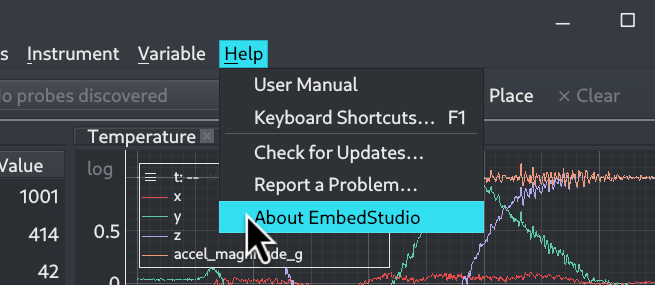
2.1Open About
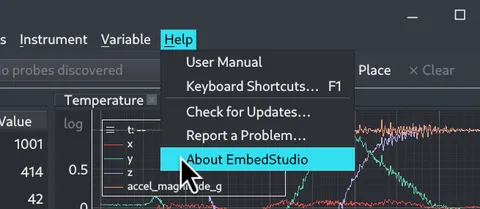
Choose Help → About EmbedStudio.
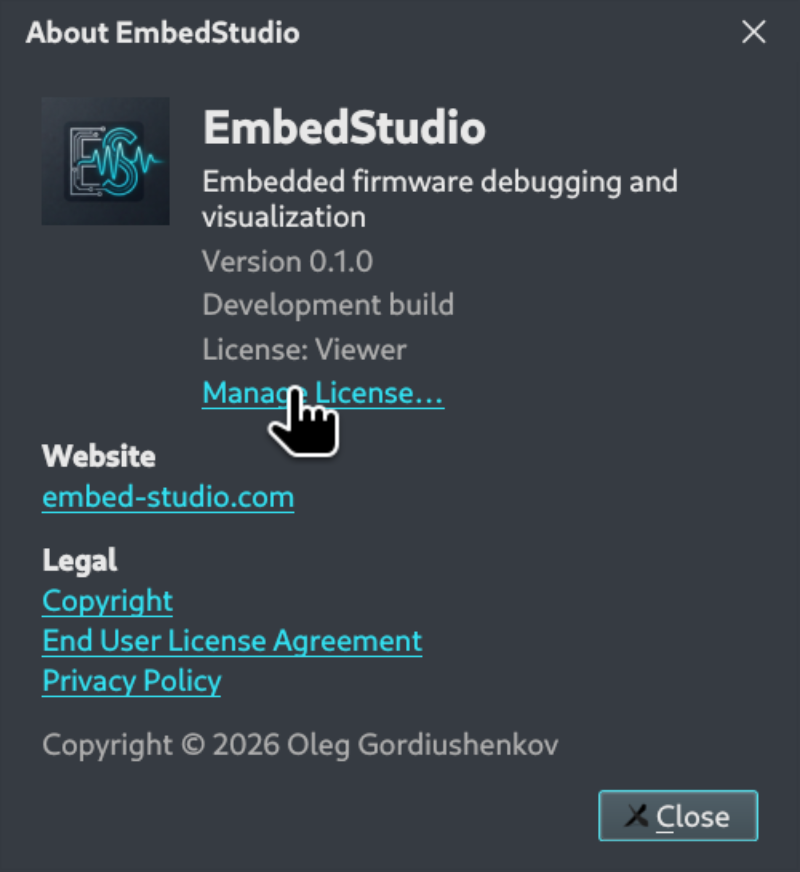
2.2Open Manage License…
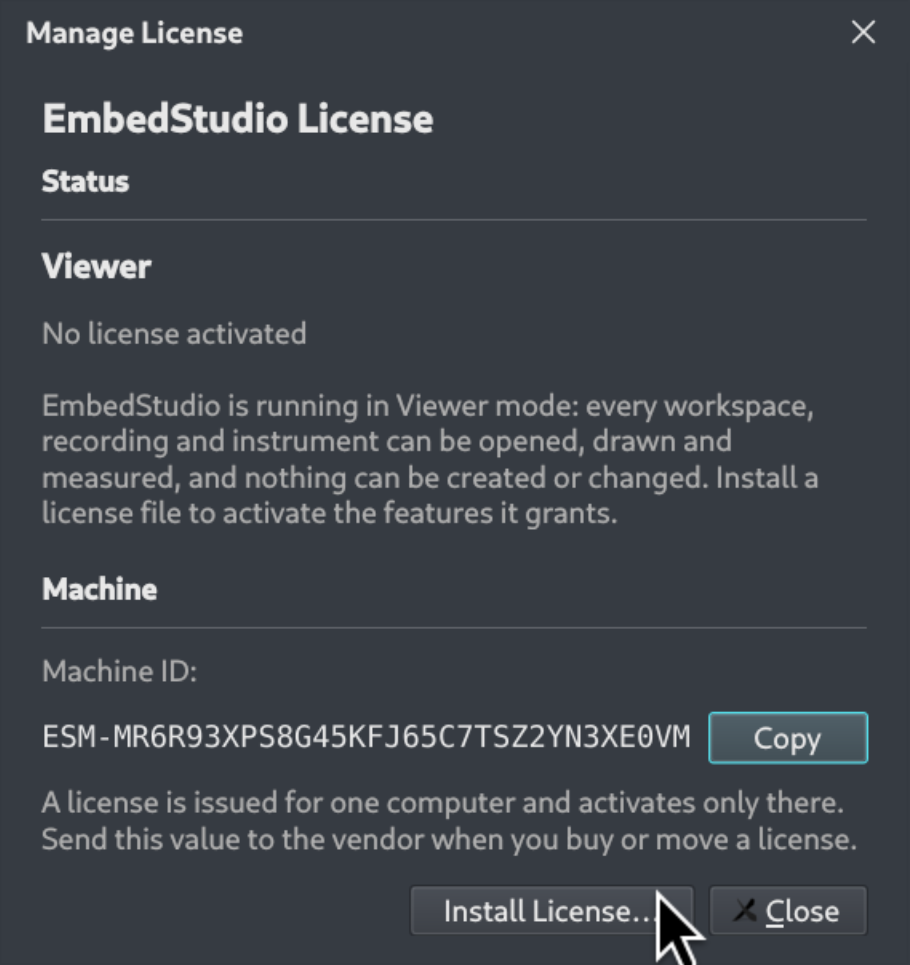
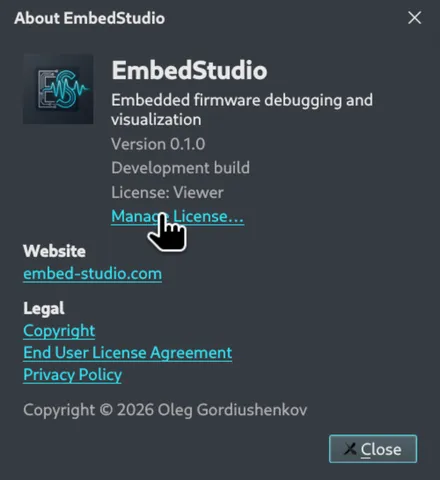
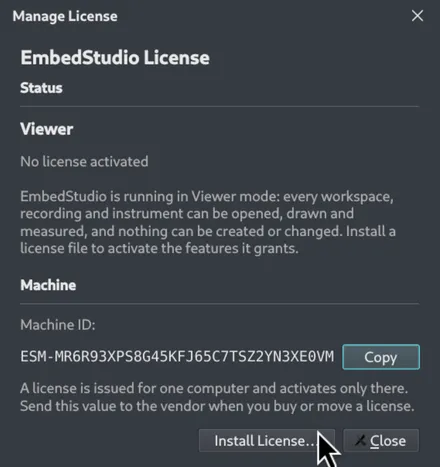
The About window shows License: Viewer. Press Manage License…. Edit → Manage License… opens the same window directly.
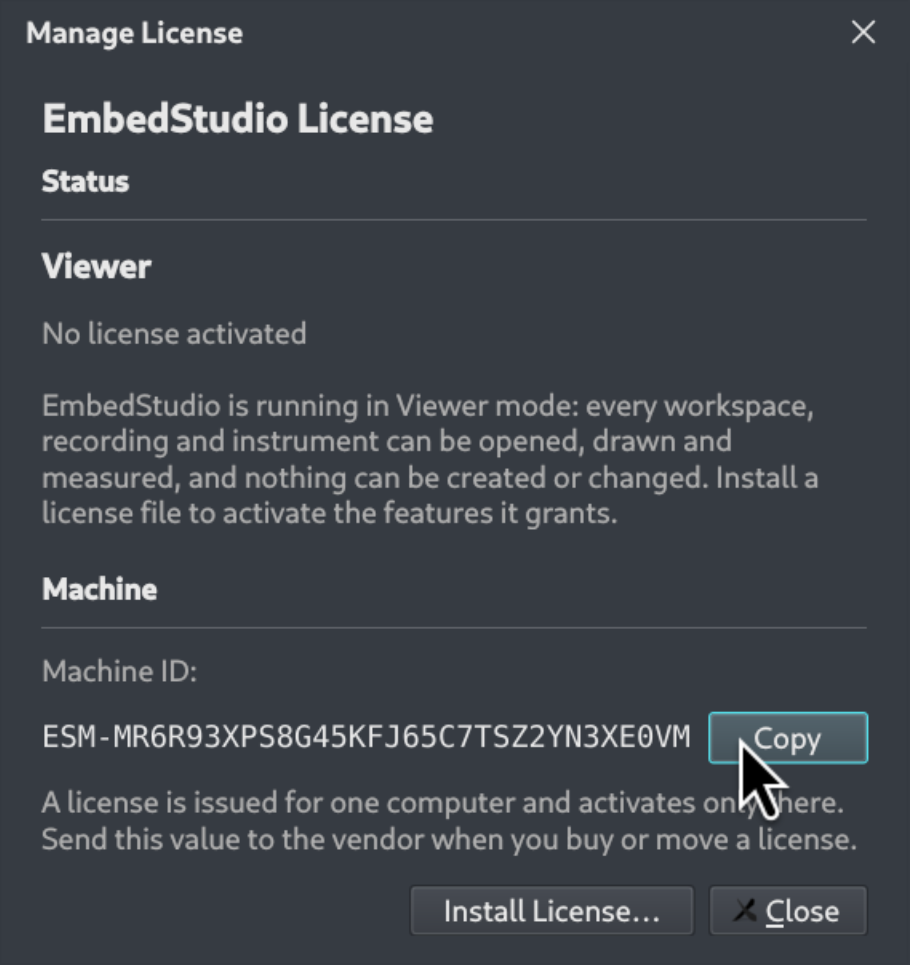
2.3Press Copy
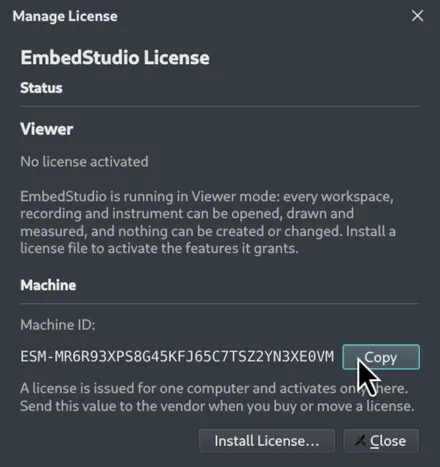
Press Copy next to the machine ID, a value that starts with ESM-. Leave the window open or close it; you come back to it in step 4.
3.Activate and download
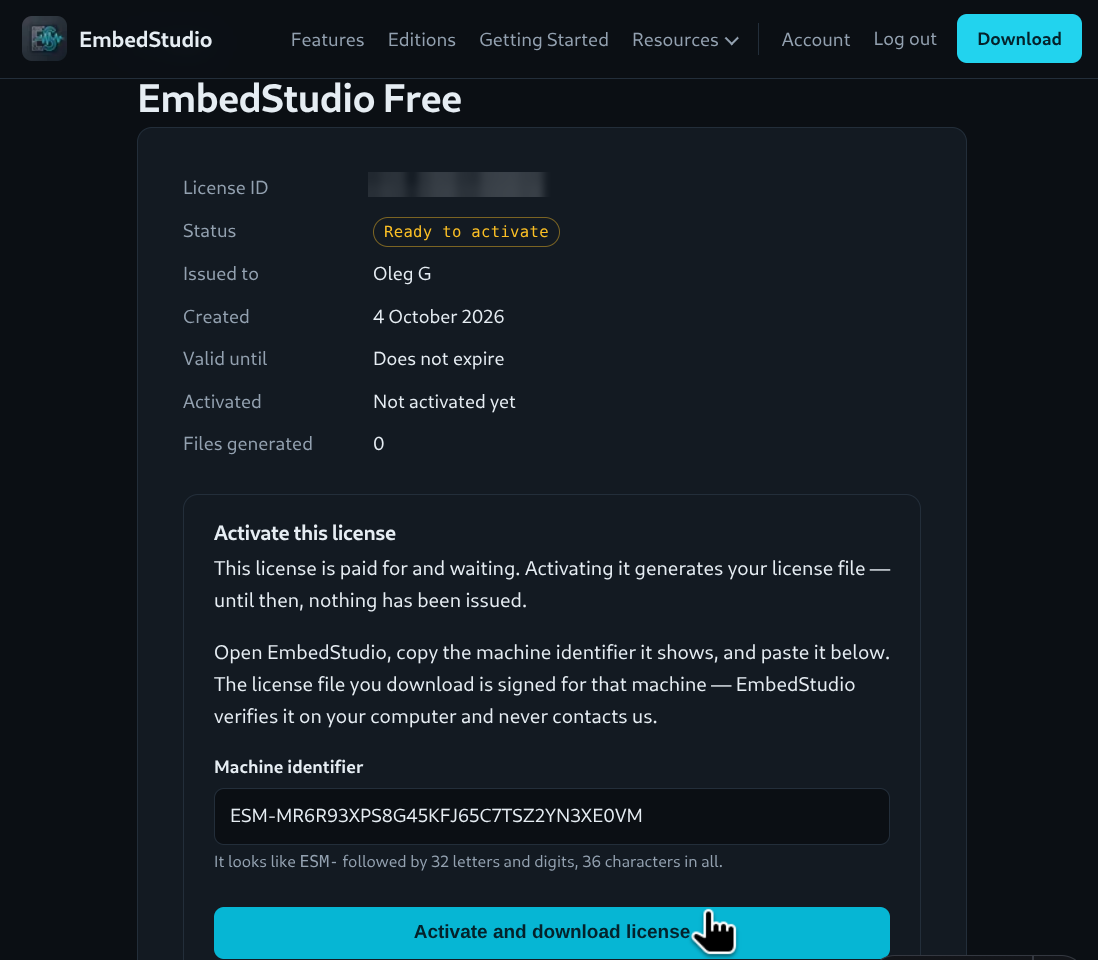
Back on the license page in your account, paste the machine ID into Machine identifier and press Activate and download license. Your browser saves the license file.
Until you press the button the license reads Ready to activate and nothing has been issued. Once it has been activated for a computer, it can only be moved to a different one through support.
4.Install the license
Back in EmbedStudio, install the file you just downloaded.
A license is tied to one computer. To use EmbedStudio on a different one, contact support. What each edition allows is on the Editions page.
4.1Press Install License…
In Manage License…, press Install License… and choose the downloaded file. If the window has been closed, open it again with Edit → Manage License….
4.2Check the status
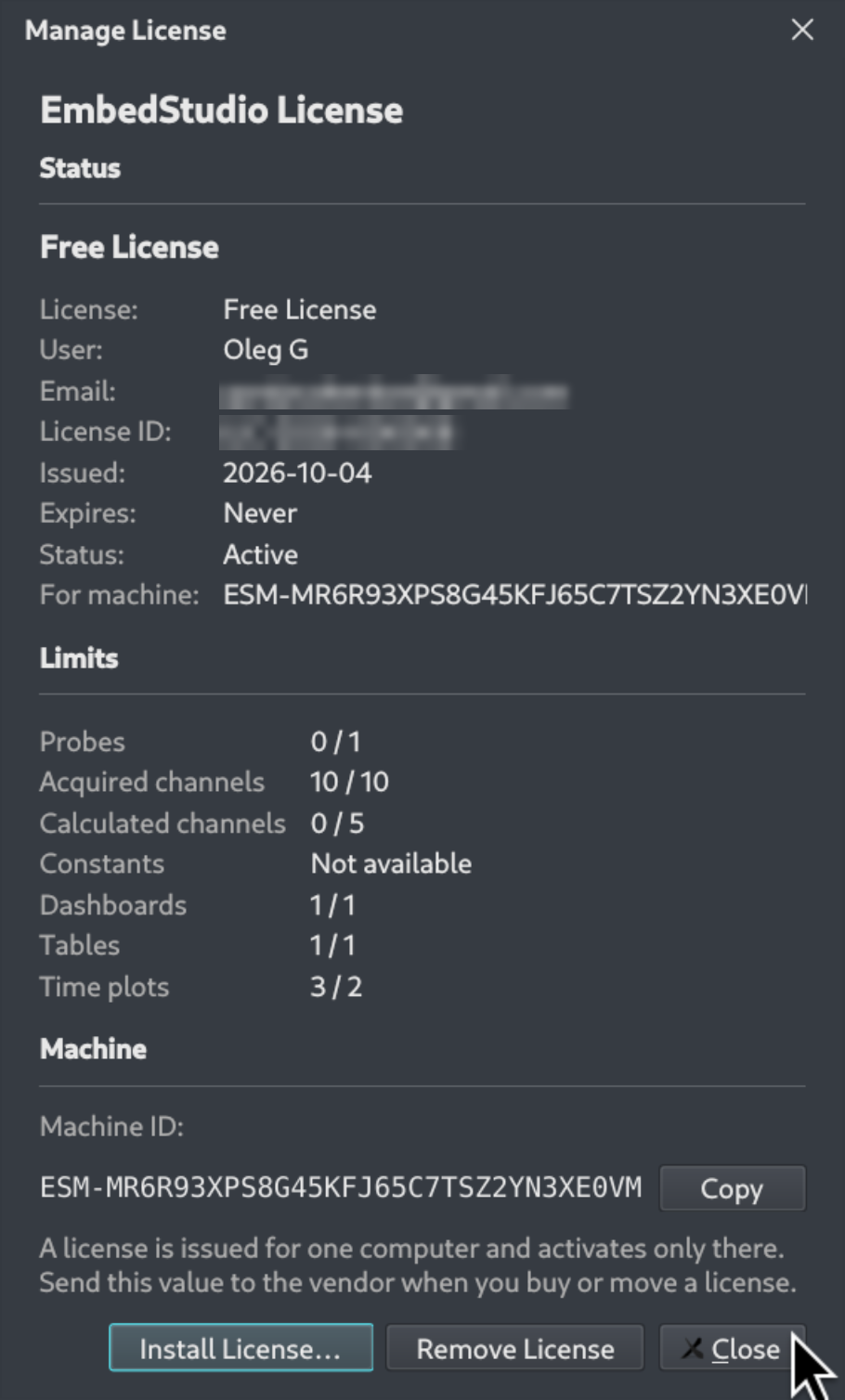
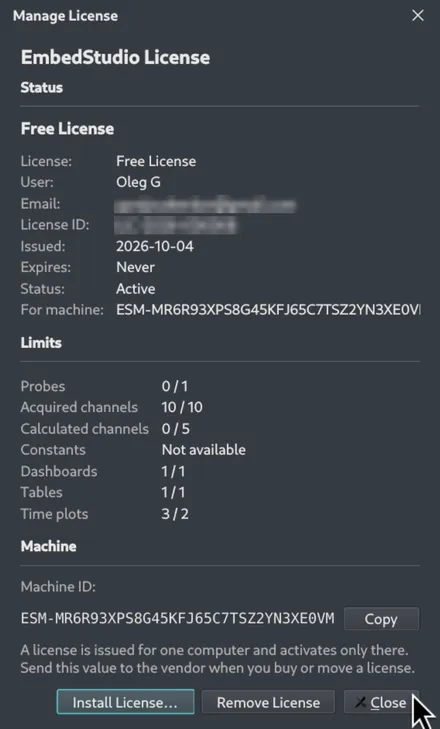
The window now reads Free License with the status Active, and a Limits table showing what the Free license allows. The machine it was issued for matches the machine ID below.
4.3See it in the status bar
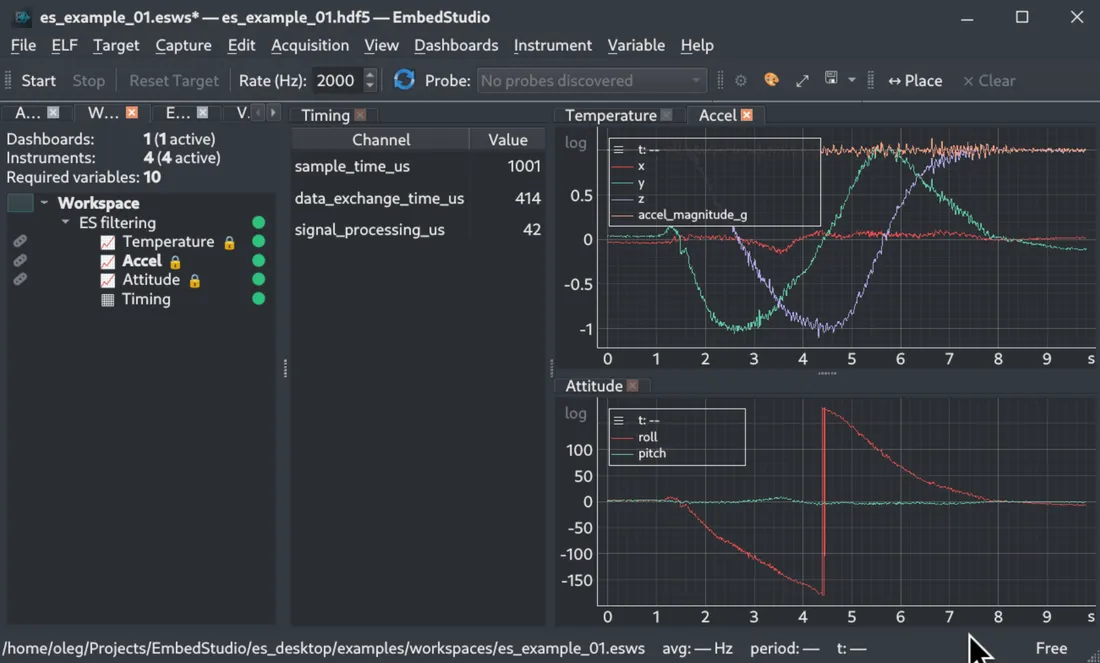
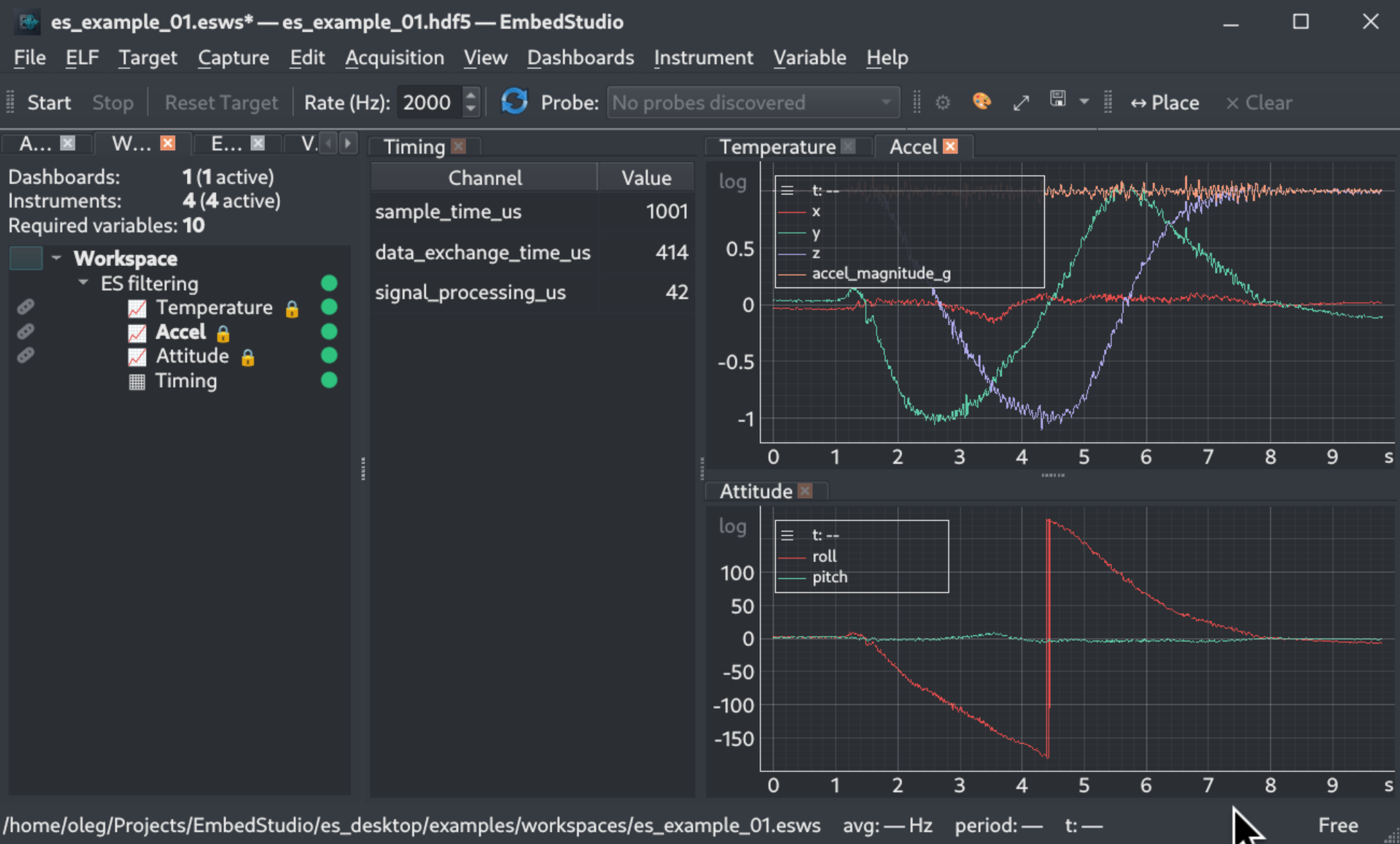
The right-hand end of the status bar now reads Free instead of Viewer. EmbedStudio can acquire from a target now.